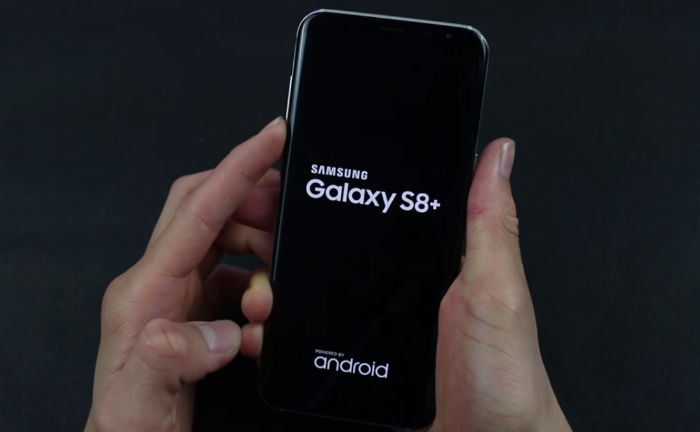
Android phone getting stuck on boot screen is not a regular occurrence. The problem always occurs when applying a new update or installing an app from an unknown source.
While your troubleshooting options may seem very limited, it is still possible to get past the boot screen.
If you’ve been facing a similar issue, you can apply the methods below and fix the Android phone stuck on boot problem. Let’s get started.
Steps To Fix Android Phone Stuck on Boot
1. FORCE REBOOT
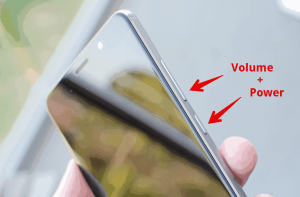
Force Restart or reboot is the first thing you should do whenever your Android device gets stuck on boot screen. That requires holding specific combination buttons on your phone.
To perform a force restart, press and hold the Power button on your phone for 30 seconds and let go of it once the device turns off. Leave it there for a minute or two. Now turn it back on to see if it boots up normally now.
2. PULL OUT BATTERY
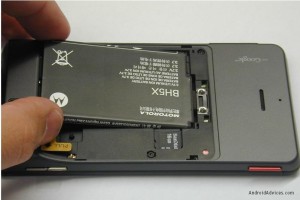
If your phone’s power button is not responding, and your phone has a removable battery, then you can try removing it to power off your phone.
Wait for 10 seconds after pulling out the battery. After that, insert the battery and power on your device. this should fix stuck on boot issues.
3. CHARGE YOUR DEVICE

If your phone is not getting past the boot screen, it may also be due to a low battery.
Thus, you can try plugging your phone into a power outlet and perform a force reboot as mentioned above to see if it fixes the stuck on boot issue.
4. TRY SAFE MODE

Safe Mode on Android is a great tool to perform basic troubleshooting and finding out what’s causing your phone to misbehave on your own. You can use this mode to fix the Android phone getting stuck on boot problem as well. Let’s see how.
- Step 1: Power off your device either by holding the Power button for 30 seconds or pulling out the battery. Wait for your device to turn off completely.
- Step 2: Now press and hold the Power button and wait for the logo to appear. Once the logo appears, press and hold the Volume Down button and your phone should boot into Safe Mode.
If your phone boots up normally in Safe Mode, then you can be sure that the issue is occurring due to some third-party app on your phone.
You can try uninstalling some recently installed apps or games and restart your phone to exit Safe Mode.
5. WIPE CACHE DATA
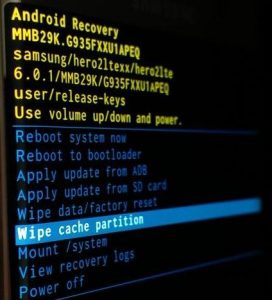
Android phones tend to collect all kinds of cache data as we continue to use them every day. And while this data is aimed to help devices operate faster.
It can also get corrupted sometimes. Thus, if removing apps doesn’t help, then you can try wiping out the cache data on your phone.
Relax, deleting cached data is completely safe as it does not lead to any loss of data. Here’s how to do it.
- Step 1: Power off your device either by holding the Power button or pulling out the battery. Wait for your device to turn off completely.
- Step 2: Now press and hold the Power button and the Volume Down button at the same time until the device turns on.
NOTE: The correct key combination to enter into the Recovery mode will differ by the brand and make of the Android phone. Thus, if the above key combination doesn’t work for you, visit the manufacturer’s website to learn the exact key combination.
- Step 3: Once you’re into the Recovery mode, use the volume buttons to navigate to the Wipe Cache Partition option. Now use the Power button to wipe the cache.
Once cleared, reboot your phone and see if the stuck on boot issue is resolved now.
6. FACTORY RESET

If all the methods above fail, then performing a factory reset might be your last option. Doing so will erase everything on your phone, including apps, accounts, contacts, photos, data, and more.
Now there are a couple of ways you can go about resetting your Android. One is through the Safe Mode, and the other is with Recovery Mode on Android. Let’s see how they work.
Reset Android via Safe Mode
Enter into Safe Mode by steps mentioned in Point 4. From there, here’s how to wipe out cached data on your phone.
- Step 1: Open up the Settings app on your phone. Scroll down and go to System. Expand Advanced, and go to Reset options.
- Step 2: Next click on Delete all data (factory reset) option followed by the Erase all data button to begin resetting the phone.
Wait for the reset process to be complete. This might take a while so it’s advisable to keep your phone charged or connected to a power outlet while resetting.
Reset Android via Recovery Mode
- Step 1: Turn off your phone, and enter into Recovery Mode by pressing the Power button and Volume Down button at the same time.
- Step 2: Inside the Recovery mode, use the Volume buttons to scroll through the menu, highlight Wipe data/factory reset. Now use the Power button to begin factory reset.
Wait for the process to complete and your device will restart. It will be as new as it was when you first bought it.
STUCK NO MORE. When stuck on boot, troubleshooting options are very limited as you can’t access the phone as usual.
That said, the above solutions should fix the issue on most occasions. If not, we recommend you visit an authorized service center and get your phone inspected by a professional.
Join Us On Telegram For More Exciting Updates