Google Maps is a well-known navigation app that helps you find the best route option, view your location history, and measure the area and distances of any place on earth and also makes locating a place very easy.
But at the end of the day, it’s just an app, and it’s going to have its fair share of imperfections.
One of those is when the app shows an incorrect location. The problem could occur due to several reasons ranging from incorrect location settings to a flawed GPS.
If the usual tricks such as restarting the app and the phone haven’t helped, we’ve compiled a list of effective fixes that you can apply to improve location accuracy in the Google Maps app. So, let’s get right into it
1. ENABLE HIGH ACCURACY IN LOCATION
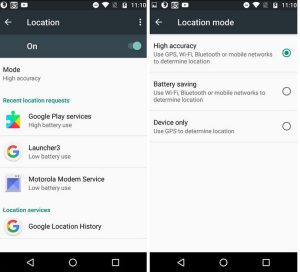
Enabling high accuracy mode on your device helps Google Maps calculate your location as accurately as possible.
So, if Google Maps is having a hard time determining your current location, you can enable high accuracy mode in location to see if it helps. Read on to learn how.
Android
- Step 1: Open the Settings app on your phone and go to Location.
- Step 2: Expand the Advanced menu and tap on Google Location Accuracy. Now toggle on the ‘Improve Location Accuracy’ button if it isn’t already.
iOS
- Step 1: Launch the Settings app on your iPhone and navigate to Privacy. Now tap on Location Services.
- Step 2: Find Google Maps from the list to toggle on the Precise Location option.
2. TURN OFF BATTERY SAVER
Android
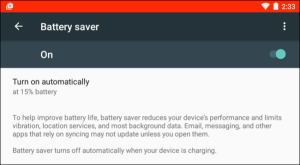
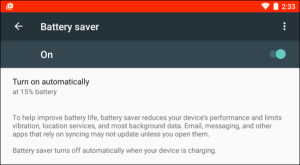
To turn off the power saver on Android, open the Settings app on your phone and navigate to Battery. Now turn off the battery saver mode.
iOS
To turn off the battery saver on iPhone, launch the Settings app, go to Battery and turn off Low Power Mode.
3. CALIBRATE COMPASS
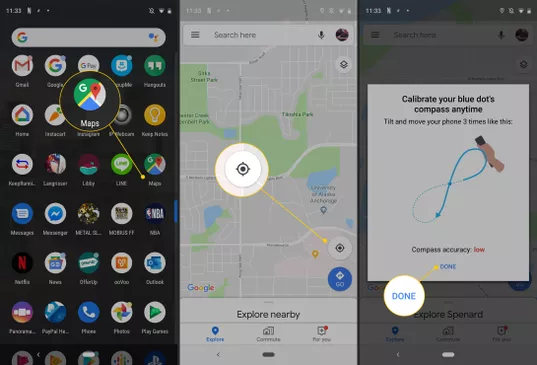
Google Maps uses a sensor called a magnetometer on your smartphone to calculate your location precisely.
And it’s regarded as best practice to calibrate this sensor from time to time or whenever the app shows an inaccurate location. Here’s how.
- Step 1: Launch the Google Maps app on your Android or iPhone and tap on the blue dot showing your current location.
- Step 2: Now tap on the Calibrate compass option at the bottom and perform the on-screen gesture to make a figure 8 with your phone.
Once calibrated, go ahead and see if Google Maps can detect your correct location.
4. CLEAR CACHE
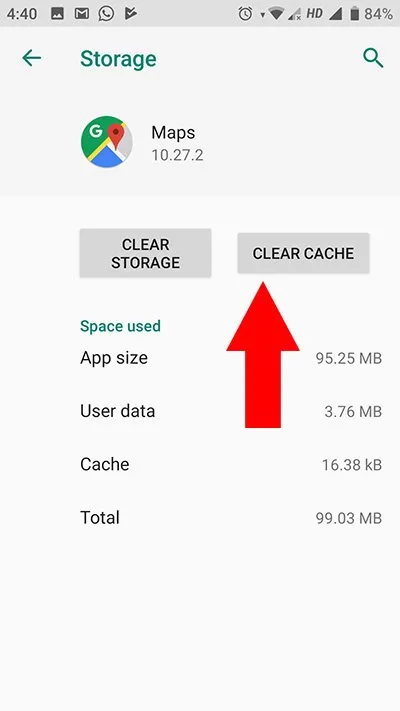
If you’ve been using the Google Maps app for quite some time now, the app may have collected a significant amount of cache data during all this time.
Sometimes, this cache data can interfere with the app’s performance, ultimately causing problems such as incorrect location issues.
To resolve that, try clearing out this cache data associated with the app. Here’s how.
- Step 1: Open the Settings app on your Android and go to Apps and notifications. Scroll down to find and tap on the Google Maps app.
- Step 2: Now go to Storage and cache and tap on the Clear cache button.
Once cleared, restart the Google Maps app to see if it can detect your location accurately.
5. DISABLE MOCK LOCATIONS
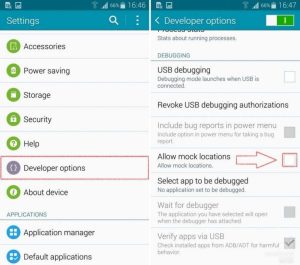
Developer Options is a nifty tool on Android that lets you tweak animation scale, boost gaming performance, and even fake GPS coordinates by creating a mock location on your phone.
You may have enabled mock locations while playing around with one of these settings. If that’s the case, try disabling it by following the steps below.
- Step 1: Launch the Settings app on your Android and go to System. Now open the Developer options menu.
- Step 2: Scroll down and locate ‘Select mock location app’. Make sure that no app is selected here.
Alternatively, you can also toggle off the Developer options menu to disable all the changes made through it.
6. TURN ON WI-FI
Apart from your phone’s GPS, Google Maps also uses nearby Wi-Fi networks to estimate your current location accurately.
Thus, if Google Maps is showing an incorrect location, you can try turning on Wi-Fi on your phone (even if you’re not going to connect with a network) to resolve the issue.
7. REINSTALL GOOGLE MAPS
Lastly, if every method above fails, you can try reinstalling the Google Maps app. It removes any data associated with the app and also updates the app in the process.
ACCURACY GUARANTEED
It’s easy to get baffled when apps like Google Maps malfunction. Hopefully, the above solutions have helped get things back to normal.
If the issue persists, you can consider switching to a lighter version, the Google Maps Go.
Join Us On Telegram For More Exciting Updates