Contents
hide
Have you encountered such a situation where you were asked for passwords to extract a zip file downloaded from internet, or you forgot the passwords for your encrypted zip file? Looking for an effective way to open a password protected zip file without knowing the password? Now you are in the right place.
We will work you through how to use iSumsoft ZIP Password Refixer to recover the unknown password of encrypted ZIP archive file. And we will sow you how to use NSIS to remove ZIP password.
2 Methods to Open a Password Protected Zip File without Password
- Method 1: Recover ZIP Password with iSumsoft ZIP Password Refixer
- Method 2: Remove ZIP password with NSIS
Method 1: Recovering password via ZIP password recovery tool
iSumsoft ZIP Password Refixer is powerful ZIP password software that helps recover unknown password from encrypted ZIP archive file in the short possible time. Then you can open your password protected ZIP file with the recovered password. Download and install ZIP Password Refixer. Launch the app once it’s installed.
Step 1: Import a password protected zip file.
Click Open button to select the password protected zip file and add it into this program.
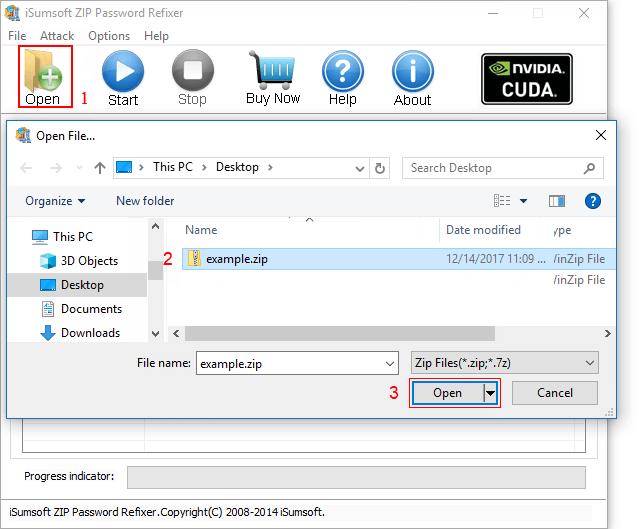
Step 2: Select a proper password attack type and define settings.
Something helps you to choose an appropriate attack type:
Brute-force attack type: It will try all possible combinations in a specified Range. The Range can be specified from the tab below. This is quite helpful when you have a basic idea of what characters your password consists of.
For example if you know that your password consists of all small Latin letters and numeric digits, then you can select just those 2 and deselect the other characters. This will significantly improve the decryption time as the software only has to scan limited characters.
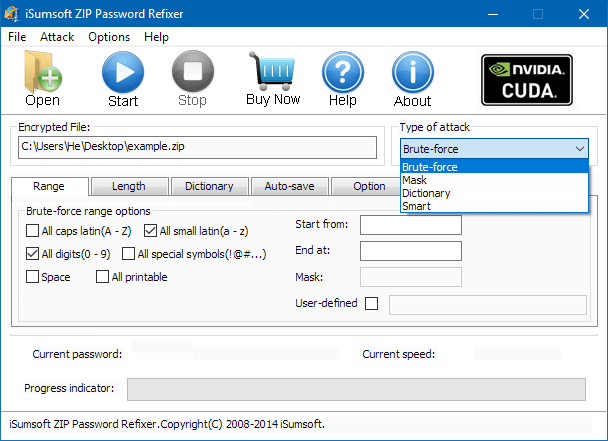
The next tab is Length. This lets you set the minimum and maximum character length of your password. So, if you know that your password ranges from somewhere between 4-6 characters, then you can set the length accordingly. If you don’t set a range, then the software will first start searching for a password within 1-3 characters first. So, the length feature can again save you quite some time.
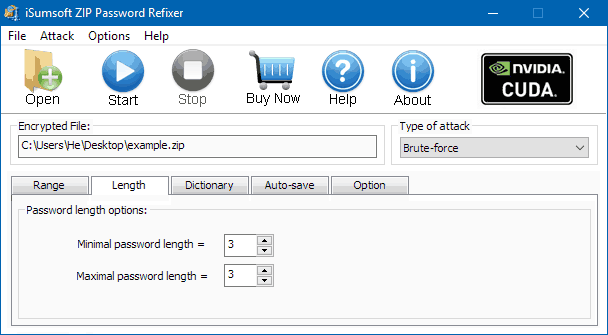
Step 3: Once all these parameters are set, Click on Start.
This will start the decryption process. The recovery time will depend majorly on how large the password is and also on how powerful your Graphics Card is. Having a good GPU will hugely decrease the recovery time. So, make sure to set your Range and Length parameters properly before starting the scan as this will help you a lot. Once the recovery is finished, you will get a popup screen where you can view your password.
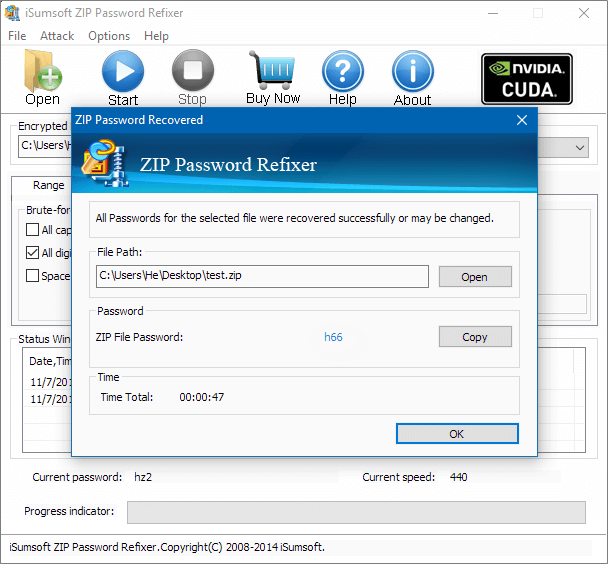
5. Open password protected zip file with the password
Then you can easily open your password protected zip file with the password. To do:
1. Double-click the ZIP files you want to unzip.
2. Enter the password for your ZIP files when the password window appears. And click on OK to go on.
3. Choose Extract All Files from the folder sidebar. Choose a location for your files and click Next then Finish.
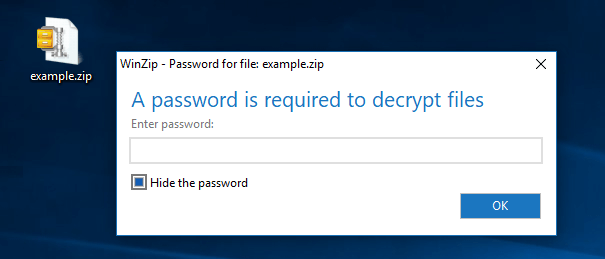
Tips: In order that you can open the password protected zip file without entering password later on, you are recommended to firstly extract the zip and then compress to a new zip by not setting password. So the zip file is not protected and you can directly open it without password.
Method 2: Remove password from an encrypted file with NSIS
NSIS is magic software that can convert a password protected ZIP file into an exe file. Install the .exe file so that it can turn into your ZIP file and you can open it without password.
Step 1: Download NSIS and install it on your computer. Then run it.
Step 2: Click the Installer based on ZIP file.
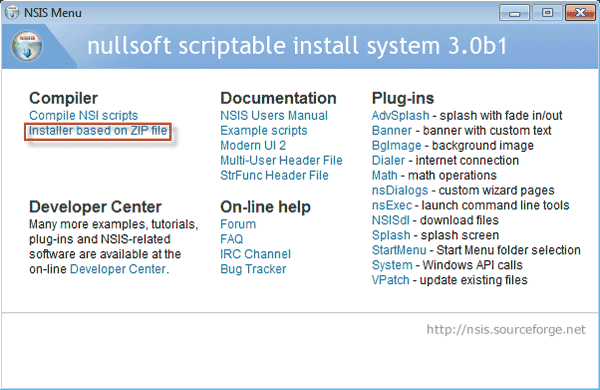
Step 3: Click the Open button. Navigate to the path to your password protected ZIP file and add it to NSIS software.
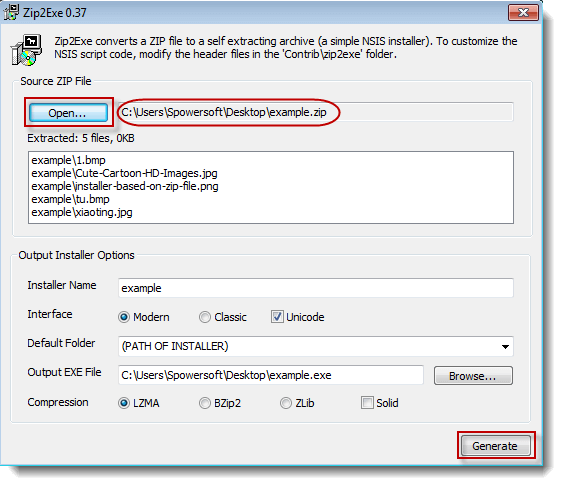
Step 4: Click the Browse button and select one path to locate the EXE file it will generate. And then click the Generate button.
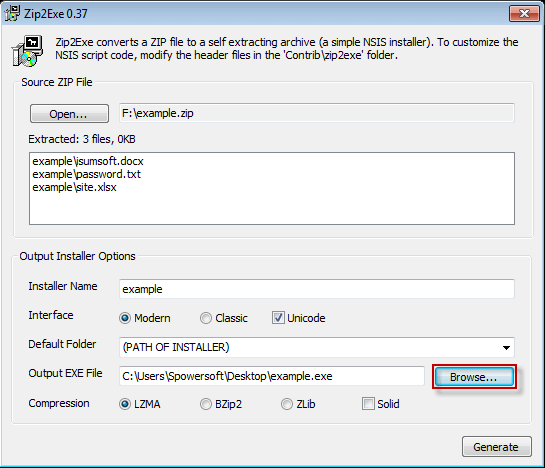
Step 5: When the generation is complete, close the dialog and you can see an EXE file just like the one below.

Step 6: Double click the EXE file to install it. When the installation is complete, it extracts your password protected ZIP file. And you can open it without password.
Share and support us if you love this work of ours!!
Join us for more tipz👇👇