AI News
  • Apk apps
  • Android Tips/Tricks
  • Phone Reviews
  • How To
  • Phone Reviews
No Result
View All Result
AI News
  • Apk apps
  • Android Tips/Tricks
  • Phone Reviews
  • How To
  • Phone Reviews
No Result
View All Result
AI News
No Result
View All Result
Margins in Google Docs: Best Way to Modify Them 2022

Margins in Google Docs: Best Way to Modify Them 2022

Xavi by Xavi
July 2, 2022
in Google
0
930
SHARES
3k
VIEWS
Share on whatsappShare on FacebookShare on TwitterShare on Telegram
Contents hide
I. Use Page Setup to Change Margins in Google Docs
II. Change the Margins in Google Docs by Using the Ruler

Do your formatting specifications specify how much space there should be between the text of your document and the page’s border? Changing and customizing your document’s margins is simple if you use Google Docs. We’ll show you two methods to do that.

Utilizing the Page Setup box is one method of altering the margins in Google Docs. You manually select your page margins in inches using this approach. The alternative method is to adjust your margins by dragging the ruler at the top of your document.

Use Page Setup to Change Margins in Google Docs

Use the Page Setup approach described here if you want to manually and accurately configure your page margins.

  • Step 1: Open Google Docs on your PC to get started.
  • Step 2: Next, choose the document whose margins you wish to modify.
Google Docs
choose the document
  • Step 3: From the menu bar on the document’s editing screen, choose File > Page Setup.
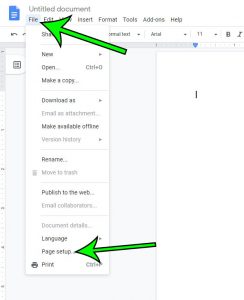
Google Docs
choose File > Page Setup.
  • Step 4: Click “Pages” in the “Page Setup” box at the top.
  • Step 5: You may set your page margins under the “Margins (Inches)” section found under the “Pages” menu on the right side of the screen. Each choice in this section implies as follows:
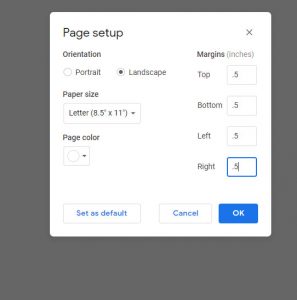
Google Docs
You may set your page margins under the “Margins (Inches)”
  1. Top: Define the distance between the content of your website and the top of your page.
  2. Bottom: This is the area between your page’s content and the bottom of the page.
  3. Left: This is the point at which the left-side content of your page begins.
  4. Right: This number indicates the size of the blank space from the right side of your document.
  • Step 6: After you’ve made your modifications to the margins, click “OK.”

Tip: Press Ctrl+Z (Windows) or Command+Z (Mac) to swiftly reverse your margin modifications. You now have your margins set in your current Google Doc.

Change the Margins in Google Docs by Using the Ruler

With the ruler method, you may adjust the page margins by dragging the ruler at the top of your document. To apply this method,

  • Step 1: open your work in Google Docs first.
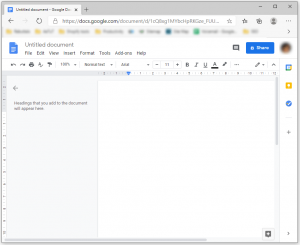
Google Docs
Open Your Work
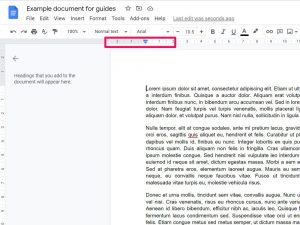
  • Step 2: If the ruler at the top of your page isn’t already visible, turn it on by selecting View > Show Ruler from the menu bar in Google Docs
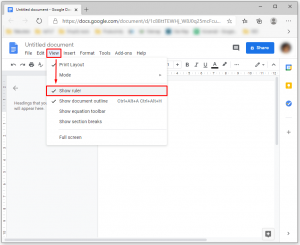
Google Docs
select View > Show Ruler from the menu bar in Google Docs
  • Step 3: Move your cursor over the gray area on the ruler at the top of your page to adjust the left and right margins. Drag the gray area to adjust the margins after that.
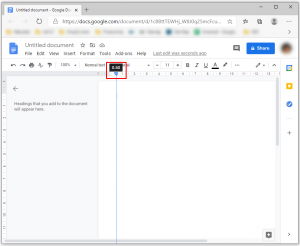
Google Docs
Move your cursor over the gray area on the ruler at the top of your page to adjust the left and right margins
  • Step 4: To change the top and bottom margins of your document, use the ruler’s gray area on the left and right sides (vertical ruler).
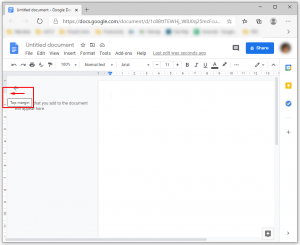
Google Docs
To change the top and bottom margins of your document, use the ruler’s gray area on the left and right sides (vertical ruler).

Your modifications are stored automatically, so you don’t have to do anything. And you’ve successfully modified the margins in your Google Docs document. Do you have a preferred format for Google Docs documents? If so, you might want to alter some of Docs’ default settings. You can save a ton of time by doing that.

Join Our Telegram Channel For More Exciting Updates Via The Link Below ⤵️

Telegram Channel

Tags: Google docsHow toMargins
SendShare372Tweet233Share
Xavi

Xavi

I am Pepple Xavier also known as Blaze, a Droidvilla content creator, A 400 level student in the University of Port Harcourt, studying Mechatronics Engineering. Found passion in technology ⚙ and decided to keep the world in touch with latest happenings around the world of technology. Visit us for daily tips and tricks, How To's and lots more www.droidvilla.com have to offer

Related Stories

send and receive applications on Google PlayStore

How To Send and Receive Applications on Google PlayStore

by Droidvilla Admin
January 29, 2023
0

New update on Google PlayStore, lets you send and receive applications on Google PlayStore between two android devices, with the use of wifi. Droidvilla Technology Solution stumbled upon...

Easy Steps For Adding Videos to Google Drive 2023

Easy Steps For Adding Videos to Google Drive 2023

by Xavi
January 20, 2023
0

One of the most complete and user-friendly cloud-based file storage systems you can fill with your data is Google Drive. if you have a Google account, which you...

Amazing : How To Use Gmail Without An Internet Connection 2023

Amazing : How To Use Gmail Without An Internet Connection 2023

by Xavi
January 11, 2023
0

Google's Gmail email app now offers an interesting new feature. You can use Gmail with this feature even when you aren't online. Let's briefly review how to use...

Google Pixel 7 : How To Set Up Your Google Pixel 7’s Free VPN

Google Pixel 7 : How To Set Up Your Google Pixel 7’s Free VPN

by Xavi
January 2, 2023
0

- As Google promised, the google Pixel 7 series of smartphones come with a free VPN perk, although the feature was delayed at launch Google's Pixel cellphone lineup does...

Next Post
Breaking : Google Hangouts Will Be Discontinued In November 2022

Breaking : Google Hangouts Will Be Discontinued In November 2022

Leave a Reply Cancel reply

Your email address will not be published. Required fields are marked *

  • About
  • Advertise
  • Privacy & Policy
  • Contact Us
  • Disclaimer

© 2025 JNews - Premium WordPress news & magazine theme by Jegtheme.

Welcome Back!

Login to your account below

Forgotten Password?

Retrieve your password

Please enter your username or email address to reset your password.

Log In
No Result
View All Result
  • Apk apps
  • Android Tips/Tricks
  • Phone Reviews
  • How To
  • Phone Reviews

© 2025 JNews - Premium WordPress news & magazine theme by Jegtheme.