
AI News
  • Apk apps
  • Android Tips/Tricks
  • Phone Reviews
  • How To
  • Phone Reviews
No Result
View All Result
AI News
  • Apk apps
  • Android Tips/Tricks
  • Phone Reviews
  • How To
  • Phone Reviews
No Result
View All Result
AI News
No Result
View All Result
Easy Way To Copy And Paste Text From A Photo With Your Smartphone 2021

Easy Way To Copy And Paste Text From A Photo With Your Smartphone 2021

Xavi by Xavi
October 22, 2021
in How To, Android Tips/Tricks, Apk apps
0
936
SHARES
3k
VIEWS
Share on whatsappShare on FacebookShare on TwitterShare on Telegram

Many of you probably wanted to copy and paste text from a photo you took, and probably didn’t know that was possible.

Well, it is, and it’s actually quite simple. In this article, we’ll show you how to copy and paste text from a photo you took with your smartphone.

This can be quite useful in a number of ways. Let’s say you took a picture of a document or something, and you need to copy a specific part of it to share with someone.

Or you took a picture of a recipe from a recipe book, this could be an easy way to digitize it. There are a number of use cases for such a feature.

It’s easy to copy and paste a text from a photo you took, all you need is Google Photos. You need that app installed on your smartphone, so if you don’t have it, install it before we start this tutorial.

We’ll explain how you can copy and paste text from a photo in this article, one step at a time, and we’ll also attach some screenshots, just to help you along. Let’s get started.

How To Copy And Paste text from a photo

  • Step 1: The first thing you’ll need to do is open Google Photos, of course. Once you’re there, locate the image you want to copy text from

Copy And Paste
Open The Google Lens app
  • Step 2: After you do that, tap that image, presuming you’re on a list of images at this point.
  • Step 3: Once the image opens, you’ll see several options at the bottom, namely Share, Edit, Lens, and Delete. Select the ‘Lens’ option.
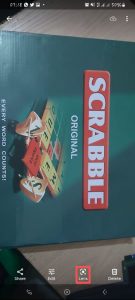
Copy And Paste
Open Image
  • Step 4: The app will automatically recognize there’s text in that image, and will let you do a number of things.

Note: You can translate some text from here, if it’s from a language you don’t understand, while you can do a direct Google Search, for example. What we’re interested in is copying. Tap the ‘Copy’ option.

Copy And Paste
Copy Text
  • Step 5: At that point, you’ll be able to select what you want to copy. Google will automatically select all text.
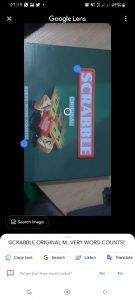
Copy And Paste
Select Text
  • Step 6: You’ll be able to adjust your choice. Once you do that, tap the “Copy text” option in the bottom-left corner.

There you go, the text has been copied to your clipboard.

You can now easily paste it wherever you like, regardless of whether you want to share it with someone, or save it in a document of some sort.

Join Us On Telegram For More Exciting Updates

https://t.me/droidvilla

Tags: CopyCopy and pastePastePhotosmartphone
SendShare372Tweet233Share
Xavi

Xavi

I am Pepple Xavier also known as Blaze, a Droidvilla content creator, A 400 level student in the University of Port Harcourt, studying Mechatronics Engineering. Found passion in technology ⚙ and decided to keep the world in touch with latest happenings around the world of technology. Visit us for daily tips and tricks, How To's and lots more www.droidvilla.com have to offer

Related Stories

Download/Save Disabled TikTok Videos to Gallery

How to Download/Save Disabled TikTok Videos to Gallery

by Droidvilla Admin
April 27, 2024
0

- How to Download/Save Disabled TikTok Videos to Gallery - Funny TikTokers to follow TikTok is the go-to social media app for content creators and enthusiasts alike, with...

know your GOtv login details

How to Know your GOTV login details (Surname and Phone Number) if forgotten

by Droidvilla Admin
January 22, 2024
1

- How to know your GOtv login details (Surname and Phone Number) if forgotten Hi there, did you forget your login details associated with GOtv and you're looking...

resubmit Pi KYC in 2024

How to resubmit Pi KYC in 2024 and get approval in minutes

by Droidvilla Admin
January 18, 2024
0

Pi has recently given all pioneers the opportunity to resubmit Pi KYC in 2024 after a very long wait. For all those who waited for this long to...

DSTV Now App Not Showing Live Channels

DSTV Now Error: 1 Fix to DSTV Now App Not Showing Live Channels

by Droidvilla Admin
January 14, 2024
0

@dstvcareFinally, here is a solution to fix the dstv now error app not showing live channels when a subscription is active. The dstv now error suddenly do not show/display...

Next Post
Increase Refresh rate

How to Increase Android Refresh rate to 120Hz on Redmi note 10 pro

Leave a Reply Cancel reply

Your email address will not be published. Required fields are marked *

  • About
  • Advertise
  • Privacy & Policy
  • Contact Us
  • Disclaimer

© 2026 JNews - Premium WordPress news & magazine theme by Jegtheme.

Welcome Back!

Login to your account below

Forgotten Password?

Retrieve your password

Please enter your username or email address to reset your password.

Log In
No Result
View All Result
  • Apk apps
  • Android Tips/Tricks
  • Phone Reviews
  • How To
  • Phone Reviews

© 2026 JNews - Premium WordPress news & magazine theme by Jegtheme.