AI News
  • Apk apps
  • Android Tips/Tricks
  • Phone Reviews
  • How To
  • Phone Reviews
No Result
View All Result
AI News
  • Apk apps
  • Android Tips/Tricks
  • Phone Reviews
  • How To
  • Phone Reviews
No Result
View All Result
AI News
No Result
View All Result
Increase Refresh rate

Increase xiaomi note 10 pro Refresh rate to max 120Hz

How to Increase Android Refresh rate to 120Hz on Redmi note 10 pro

Droidvilla Admin by Droidvilla Admin
October 23, 2021
in Android, Android Tips/Tricks, How To, Phone Reviews
0
931
SHARES
3k
VIEWS
Share on whatsappShare on FacebookShare on TwitterShare on Telegram

You can Confidently Increase Android Refresh rate of your Redmi note 10 pro to max 120Hz.

Contents hide
I. What is Android Refresh Rate?
II. Increase Android Refresh rate from 60Hz to 120Hz on Redmi note 10 pro
III. Top 11 Android smartphones with 120Hz refresh RATE
IV. Increase Android Refresh Rate – Summary

If you want to enjoy maximum speed on your Redmi android device, then increasing the Refresh Rate from default 60Hz to 120Hz is definitely the right option.


For the android gamers, increasing my note 10 pro Refresh rate to max 120Hz significantly made my Call of Duty game play smoother and faster, compared to when it was set to default to 60Hz…

However, Increase in refresh rate consumes more battery life, but who cares, when you are in a game mode or you wish to experience faster and smoother mobile device operations.

If you are new to the term Refresh Rate, I will gladly take out few minutes to enlighten you on what “Refresh Rate” is all about, and the major important role it plays on all DROID devices.

What is Android Refresh Rate?

The refresh rate of any android device measures how swiftly the phone’s display updates. Furthermore, how often and swiftly the content on the screen refreshes.


For example, a 60Hz display refreshes 60 times per second, 90Hz is 90 times per second, 120Hz is 120 times per second, respectively.


Now you can confirm to the fact that a 120Hz display refreshes twice as swift as a 60Hz panel, and 4x swifter than 30Hz.


So, having a good refresh rate display as high as a 120Hz, feels a lot smoother and snappier.

Increase Android Refresh rate from 60Hz to 120Hz on Redmi note 10 pro

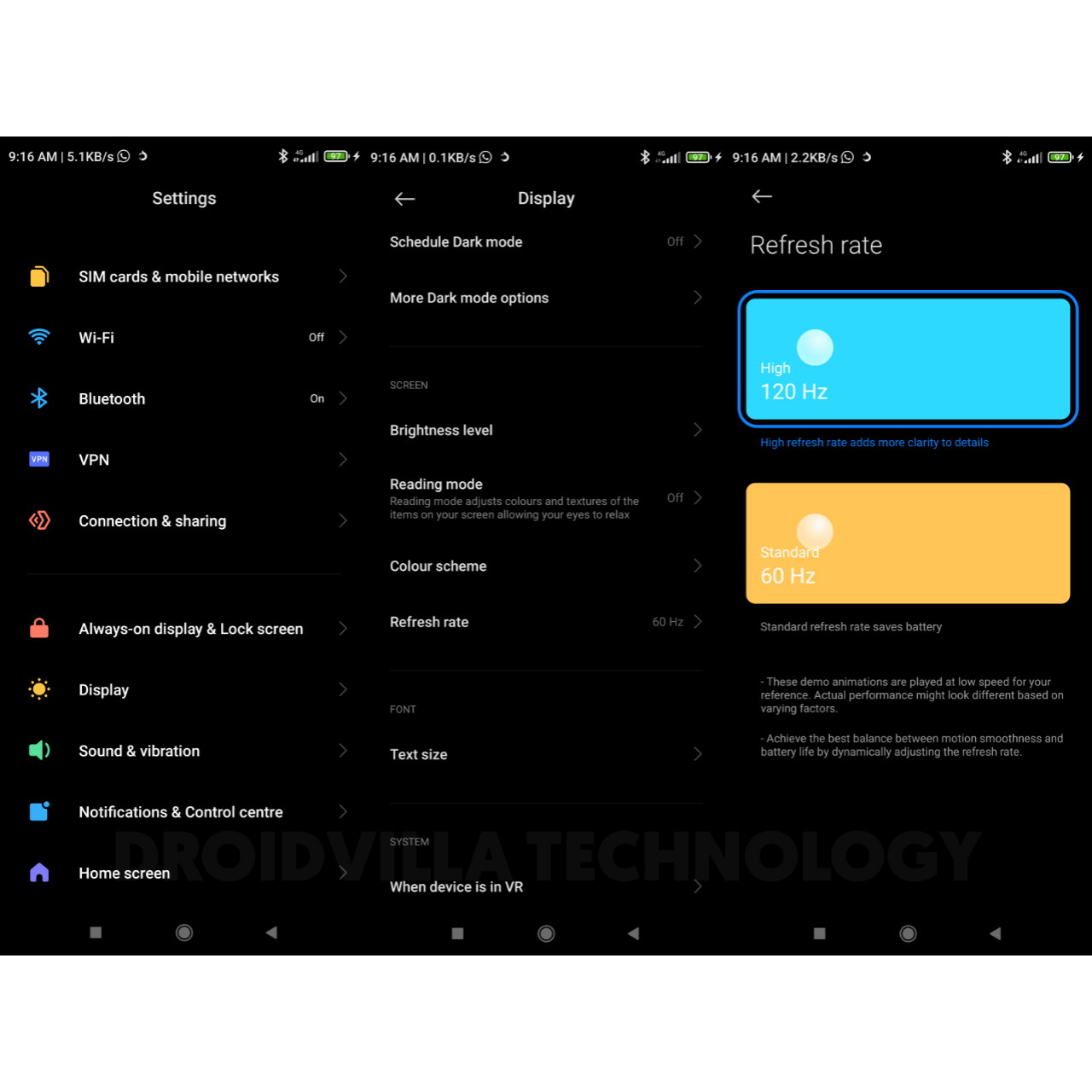
To change your Redmi note 10 pro refresh rate, follow steps below…
Increase Android Refresh rate
Increase xiaomi note 10 pro Refresh rate to max 120Hz
  • Go to settings
  • Select Display
  • Scroll down and tap on Refresh Rate
  • Now select 120Hz…

Once this is done, you can now feel the smoothness and faster refresh rate of your Redmi Note 10 pro.


Top 11 Android smartphones with 120Hz refresh RATE

Here is a list of selected few Android devices with options to increase Refresh Rate to Max 120Hz.

  • Asus Rog Phone 5 – 144Hz display
  • Samsung Galaxy S21 series – 120Hz display
  • OnePlus 9 series – 120Hz display
  • Xiaomi Mi 11 – 120Hz display
  • Oppo Find X3 Pro – 120Hz display
  • Google Pixel 5 – 90Hz display
  • OnePlus Nord CE – 90Hz display
  • OnePlus 9R
  • Samsung Galaxy S20 FE
  • Xiaomi Mi 10i
  • Xiaomi Redmi Note 10 Pro – Max 120Hz Display


Increase Android Refresh Rate – Summary

In summary: A higher android device Refresh Rate makes for a swifter scrolling experience.

Principally, your android phone will also sense faster because the screen views responses to your swipes and taps more quickly than before.


Just if you need further inquiries or you might want to know about a specific Android device refresh rate before purchasing it, simply join us on Telegram or send a mail to the author @ favtechblogger@gmail.com.

Tags: android with high refresh rateIncrease Android Refresh rateIncrease Refresh rateIncrease xiaomi note 10 pro Refresh rate to max 120Hzredmi refresh ratexiaomi Refresh rate
SendShare372Tweet233Share
Droidvilla Admin

Droidvilla Admin

I am Nnoka Godswill also known as Favtechblogger. Lover of Android/Technology, a passionate tech content creator with over 5 years + of blogging experience, an SEO god, a Marketer, and a graduate of Electronics and Computer Engineering from the University of Port Harcourt . Email the author at favtechblogger@gmail.com.

Related Stories

Download/Save Disabled TikTok Videos to Gallery

How to Download/Save Disabled TikTok Videos to Gallery

by Droidvilla Admin
April 27, 2024
0

- How to Download/Save Disabled TikTok Videos to Gallery - Funny TikTokers to follow TikTok is the go-to social media app for content creators and enthusiasts alike, with...

know your GOtv login details

How to Know your GOTV login details (Surname and Phone Number) if forgotten

by Droidvilla Admin
January 22, 2024
1

- How to know your GOtv login details (Surname and Phone Number) if forgotten Hi there, did you forget your login details associated with GOtv and you're looking...

resubmit Pi KYC in 2024

How to resubmit Pi KYC in 2024 and get approval in minutes

by Droidvilla Admin
January 18, 2024
0

Pi has recently given all pioneers the opportunity to resubmit Pi KYC in 2024 after a very long wait. For all those who waited for this long to...

DSTV Now App Not Showing Live Channels

DSTV Now Error: 1 Fix to DSTV Now App Not Showing Live Channels

by Droidvilla Admin
January 14, 2024
0

@dstvcareFinally, here is a solution to fix the dstv now error app not showing live channels when a subscription is active. The dstv now error suddenly do not show/display...

Next Post
Redmi Note 11 Release Date and Leaks

Redmi Note 11 Release Date and Leaks revealed

Leave a Reply Cancel reply

Your email address will not be published. Required fields are marked *

  • About
  • Advertise
  • Privacy & Policy
  • Contact Us
  • Disclaimer

© 2025 JNews - Premium WordPress news & magazine theme by Jegtheme.

Welcome Back!

Login to your account below

Forgotten Password?

Retrieve your password

Please enter your username or email address to reset your password.

Log In
No Result
View All Result
  • Apk apps
  • Android Tips/Tricks
  • Phone Reviews
  • How To
  • Phone Reviews

© 2025 JNews - Premium WordPress news & magazine theme by Jegtheme.