
Enable or Disable Smart Lock on Android; How?
Unlocking your phone has become faster than ever with blazing-fast fingerprint sensors and feature-rich Face ID. Convenient as it is, unlocking your phones just to open an app seems unnecessary at times, especially when you’re at your home or when you’re constantly using it. That’s where enabling Smart Lock on your Android can help.
Smart Lock feature keeps your phone unlocked when connected to a trusted device or in familiar territory. There are few different versions of Smart Lock on Android, and we shall walk you through all of those and more. So, let’s get right to it.
HOW TO ENABLE OR DISABLE ON-BODY DETECTION IN ANDROID SMART LOCK ON YOUR DEVICE
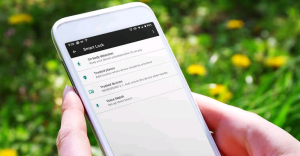
Enabling On-body Detection Smart Lock will keep your device unlocked as long as it is in your hand. Once the device is put down on a stable surface, it’ll automatically lock itself.
Read on how to enable On-body Detection in Smart Lock for Android.
Step 1: Launch the Settings app on your Android and navigate to Security.
Step 2: Under Device Security, tap on the Smart Lock option. Next, enter your device PIN.
Once verified, you’ll find all the Smart Lock options available. Tap on the On-body detection option to enable it.
Step 3: Next, toggle on the switch next to ‘Use On-body detection.’ On the confirmation box, tap on Continue to proceed.
Once enabled, your device will stay unlocked for up to 4 hours as long as it detects any movements such as running, walking, strolling, etc.
That said, it cannot in any way distinguish between you and someone else. So, if someone gets hands on your device while it’s unlocked, they can easily use it. To disable it, revisit the On-body detection option by following the steps above and turning off the switch next to it.
HOW TO ENABLE OR DISABLE TRUSTED PLACES IN ANDROID SMART PHONE
If you spend most of your time working from home or in an office, it can be frustrating to unlock your phone every time you check something. You can add trusted places such as home or office where your phone would remain unlocked to overcome that.
Read on how to add trusted places to Smart Lock on Android.
Step 1: Launch the Settings app on your Android and navigate to Security.
Step 2: Under Device Security, tap on the Smart Lock option. Next, enter your device PIN if you’ve enabled it.
Step 3: Tap on Add trusted place option to enter places where your device should stay unlocked.
Step 4: Here, you can use the search bar at the top to look for a particular place you want to add. Or else, you can also navigate through the map manually to pinpoint a particular location. Lastly, tap on the Select this location option to save it.
Step 5: Give that trusted place a suitable name and tap on OK.
Similarly, you can add more trusted places if you wish. Once you unlock your device, it’ll stay unlocked for up to four hours as long as you’re near the trusted place. Do note that you’ll need to keep the GPS enabled on your phone for this feature to work.
If you wish to disable trusted places in Android Smart Lock, open the Smart Lock settings on Android, tap on the Trusted Places entered by you, and select the Delete option.
Smart Lock is undoubtedly a nifty feature to have for those who are always around people they trust and don’t necessarily require their phone to stay locked all the time.
So, what are your thoughts about the Smart Lock on Android? Would you be comfortable using it or be happy to register your face or a fingerprint every time you unlock your phone? Let us know.
You can reach out to us via our telegram platform http://t.me/droidvilla