
AI News
  • Apk apps
  • Android Tips/Tricks
  • Phone Reviews
  • How To
  • Phone Reviews
No Result
View All Result
AI News
  • Apk apps
  • Android Tips/Tricks
  • Phone Reviews
  • How To
  • Phone Reviews
No Result
View All Result
AI News
No Result
View All Result
An Easy Guide On How To Turn On Dark Mode In Microsoft Outlook 2021

An Easy Guide On How To Turn On Dark Mode In Microsoft Outlook 2021

Xavi by Xavi
February 23, 2022
in Applications, How To, Tech Issues
0
932
SHARES
3k
VIEWS
Share on whatsappShare on FacebookShare on TwitterShare on Telegram
Contents hide
I. How to Turn on Dark Mode in Outlook on Android
II. How to Turn On Dark Mode in Outlook on Web

Are you tired of seeing the regular bright Outlook interface on your device? If so, you can turn on dark mode and get a dark emailing experience.

In this article, I’ll show you how to turn on dark mode on your Android device and on a web browser, if that’s what you’re using to access outlook.

How to Turn on Dark Mode in Outlook on Android

To enable dark mode on Android;

  • Step 1: The first thing you have to do is open the Outlook app on your phone.
Dark Mode
Launch Microsoft Outlook App
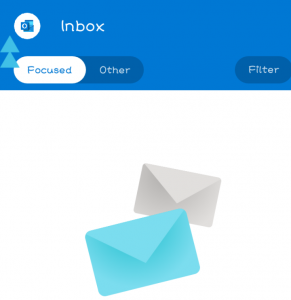
  • Step 2: Then, tap on your profile icon in the app’s top-left corner.
Dark Mode
Click On Profile Icon
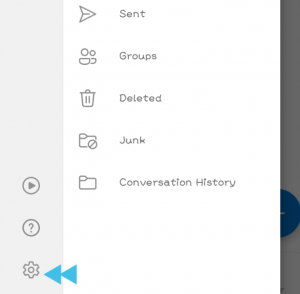
  • Step 3: Tap on “Settings” in the left sidebar.
Dark Mode
Click On Settings Icon
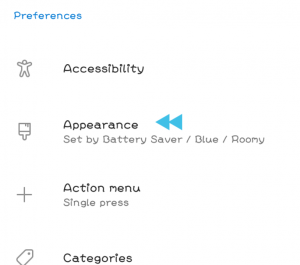
  • Step 4: Tap on “Appearance” in the “Preference” section, still on the “Settings” page.
Dark Mode
Click On Appearance

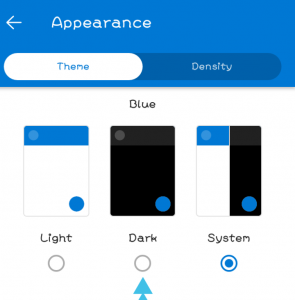
This Appearance page has three themes that you can choose from. Here’s how the three themes works.

  • Light: This option makes use of light mode in Outlook.
  • Dark: You should select this option to turn on dark mode in Outlook.
  • System: This option makes use of your phone’s default mode. That means, if you are using dark mode on your phone, Outlook will make use of dark mod also.
  • Step 5: Click on “Dark” on the “Appearance” page.
Dark Mode
Select Dark Appearance
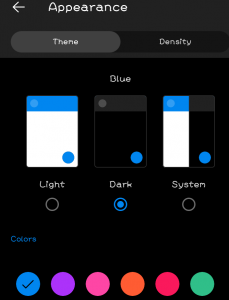
  • Step 6: Outlook will save your settings after which your interface will turn dark.
Dark Mode
Interface Changes To Dark Theme

That’s all we have on Android. Let’s go over the steps on how to turn on dark mode on the web.

How to Turn On Dark Mode in Outlook on Web
Dark Mode
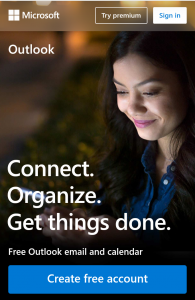
Microsoft Outlook Web Version

This section is for those that use Outlook on the web at Outlook.com. You can also enjoy a dark emailing experience following these steps.

  • Step 1: Launch the Outlook site on your preferred web browser.
  • Step 2: Next, log in to your email account on the site.
  • Step 3: Tap on “Settings” (a gear icon) in the site’s top-right corner.
  • Step 4: Enable “Dark Mode” in the Settings menu.

Your preference will be saved by Outlook and turn your interface dark. Enjoy Emailing!

Join Other Friends On Our Fast Growing Telegram Channel, To Get Latest Tech News And Updates, Via The Link Below

https://t.me/droidvilla

Tags: Dark ModeEasy GuideMicrosoft OutlookTurn On Dark Mode
SendShare373Tweet233Share
Xavi

Xavi

I am Pepple Xavier also known as Blaze, a Droidvilla content creator, A 400 level student in the University of Port Harcourt, studying Mechatronics Engineering. Found passion in technology ⚙ and decided to keep the world in touch with latest happenings around the world of technology. Visit us for daily tips and tricks, How To's and lots more www.droidvilla.com have to offer

Related Stories

Download/Save Disabled TikTok Videos to Gallery

How to Download/Save Disabled TikTok Videos to Gallery

by Droidvilla Admin
April 27, 2024
0

- How to Download/Save Disabled TikTok Videos to Gallery - Funny TikTokers to follow TikTok is the go-to social media app for content creators and enthusiasts alike, with...

WhatsApp 60sec Video Status Length Upload

WhatsApp 60sec Video Status Length Upload

by Droidvilla Admin
April 26, 2024
0

WhatsApp 60sec Video Status Length Upload : A Game-Changer for Users! WhatsApp, known for its user-centric approach and frequent updates, has done it again! With the latest update,...

know your GOtv login details

How to Know your GOTV login details (Surname and Phone Number) if forgotten

by Droidvilla Admin
January 22, 2024
1

- How to know your GOtv login details (Surname and Phone Number) if forgotten Hi there, did you forget your login details associated with GOtv and you're looking...

resubmit Pi KYC in 2024

How to resubmit Pi KYC in 2024 and get approval in minutes

by Droidvilla Admin
January 18, 2024
0

Pi has recently given all pioneers the opportunity to resubmit Pi KYC in 2024 after a very long wait. For all those who waited for this long to...

Next Post
Easy Way You Can Choose Photo Upload Quality On WhatsApp 2021

Easy Way You Can Choose Photo Upload Quality On WhatsApp 2021

Leave a Reply Cancel reply

Your email address will not be published. Required fields are marked *

  • About
  • Advertise
  • Privacy & Policy
  • Contact Us
  • Disclaimer

© 2025 JNews - Premium WordPress news & magazine theme by Jegtheme.

Welcome Back!

Login to your account below

Forgotten Password?

Retrieve your password

Please enter your username or email address to reset your password.

Log In
No Result
View All Result
  • Apk apps
  • Android Tips/Tricks
  • Phone Reviews
  • How To
  • Phone Reviews

© 2025 JNews - Premium WordPress news & magazine theme by Jegtheme.