Easy 6 Ways to Fix Notifications Not Working on YouTube
Notifications have served from time in memorial as reminders. YouTube notifications reminds you about the latest posts and videos from your favorite YouTube channels. Aside from informing the user, when someone likes your comment , you will also be notified whenever your favorite Youtuber goes live. As important as they are, there can be sometimes when YouTube fails to notify you on important information on your Android .
Meanwhile the reason behind YouTube not sending notifications could vary, fixing it is easy with the solutions mentioned below.
-
CAREFULLY MAKE SURE YOU’RE SIGNED-IN
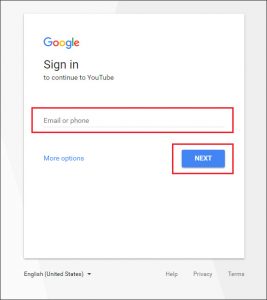
In order to receive notifications from YouTube, firstly you need to be sure that you’re signed in to YouTube with your Google account. To confirm that, quickly open the YouTube app and click on your profile icon in the top-right corner. Tap on your account information (name) quickly at the top to confirm that you’re logged in with your Google account.
-
PROMPTLY CHECK PHONE NOTIFICATIONS SETTINGS
Next thing you should also , check is the notification settings on your Android phone this helps you to confirm that you haven’t disabled notification from the YouTube app. Follow the steps promptly to enable notifications on your phone.
Step 1: Click and Press for long the YouTube’s app icon and gently tap the App information icon quickly from the menu that comes up.
Step 2: On the app interface that carries the information, quickly go to Notifications and put on the switch close to All YouTube notifications. Quickly Make sure to enable other notifications settings as well.
-
MAKE SURE TO CHECK IN-APP NOTIFICATION SETTINGS
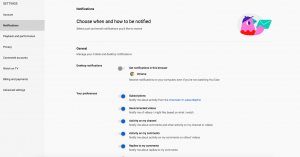
If after carrying out the two steps stated earlier on the post and you are still not getting notification from YouTube, then need to cross check the in-app notification settings in the YouTube app. Here’s a guide on how to go about it.
Step 1: Click Open the YouTube app on your Android device and tap on the profile picture in the top right corner.
Step 2: Very quickly, click on the Settings and go to Notifications.
Step 3:In there You’ll find all the notification preferences for the YouTube app. Now you can set your notification preference by changing the corresponding switches next to them.
-
CONFIRM CHANNEL NOTIFICATION SETTINGS
If you are still not getting notifications only from a few channels, quickly check those channels’ notification settings. Follow the steps below.
Step 1: Open the YouTube app and tap on your profile icon in the top-right corner.
Step 2: Next, quickly select the Settings option and tap on Notifications on the Phone’s screen.
Step 3: Thereafter click on Channel settings to find all the channels you’ve subscribed to along with a notification icon next to them.
Step 4: Click on the notification icon and choose All from the menu that pops up.
Your YouTube notifications can be personalized because it differs from user to user. YouTube makes use of a lot of algorithms based on your watch history and also your likes and search history to determine whether or not to send the notification.
-
QUICKLY TURN OFF INCOGNITO MODE
Many folks do not know what incognito mode means. Incognito mode in YouTube is a nice way to watch videos without saving any it’s browsing history. When incognito mode is enabled, it basically signs you out from YouTube. Automatically , at this time, YouTube won’t be receiving any notification from YouTube.
To put off this incognito mode in YouTube, click on the Incognito icon in the upper-right corner.
Choose the Turn off incognito option
-
QUICKLY DISABLE DO NOT DISTURB
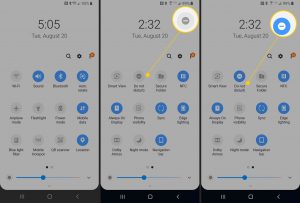
Do Not Disturb is a go to feature on all Android Phones that can prevent apps , contacts and messages from sending notifications. So, if you’ve probably enabled the DND mode on your phone, you may not receive notifications from YouTube.
In order to disable Do Not Disturb on Android, open Settings and quickly go to Sound. Click on
Do Not Disturb and put it off from there.
These steps of followed promptly will guide you on how to start receiving notifications again from YouTube.
You can visit our telegram channel for more recent updates http://t.me/droidvilla
Nice fix, thanks
Welcome