
AI News
  • Apk apps
  • Android Tips/Tricks
  • Phone Reviews
  • How To
  • Phone Reviews
No Result
View All Result
AI News
  • Apk apps
  • Android Tips/Tricks
  • Phone Reviews
  • How To
  • Phone Reviews
No Result
View All Result
AI News
No Result
View All Result
Schedule text messages on android instantly

Schedule text messages on android instantly

An Easy Guide To Sched­ule Text Messages On Android Instantly 2021

Celine Simon by Celine Simon
March 2, 2022
in Android, How To, Tech Info
0
931
SHARES
3k
VIEWS
Share on whatsappShare on FacebookShare on TwitterShare on Telegram

An Easy Guide to Sched­ule Text Mes­sages on Android instantly.

Like the popular saying goes, timing is everything. A lot of people don’t joke with their time,even when it comes to a text message. Moreover, the last thing you would want to do is to send a late-night text message to your Employee in fear of forgetting it to do it latter on.

Anyways , if compiling a message at the scheduled time is often a burden to you, probably you can save yourself the stress by scheduling the text messages instead.

Even if you have an Android or an iPhone, delayed messages can be sent and forgetten about. This article will guide you on how to schedule messages on Android devices. So, let’s get started.

QUICK WAY TO SCHEDULE TEXT MESSAGES ON ANDROID
Schedule text messages on android instantly

If you’re an Android user, Google Messages will obviously be set as the default messaging app on your phone.

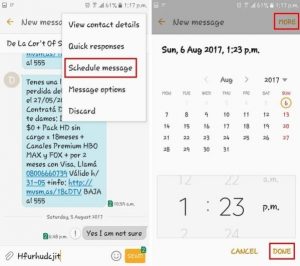
So, if that’s the case, here’s an easy guide on how you can schedule a text messages using the Google Messages app on Android.

  • Quickly Open up the Messages app on your phone. Proceed to Use the Start Chat button and create a new conversation or open an existing conversation to type your message.
  • After the first step has been carried out. Now tap and hold the Send button until a ‘Schedule send’ window appears. Select from the available times to send a message. Also, you can use the date and time picker to set and select a scheduled time for the message.
  • As soon as you are done, a small clock will immediately appear on the Send button, this indicates that it’s a scheduled message. Tap on that Send button and the message will be scheduled.

As soon as It has been sent, the message will have a clock icon next to it. On another note, these can be used to make any changes to the scheduled message. For instance, you can choose to update the message text or change its schedule by selecting the Update message option.

Alternatively, you can also choose to send the message right away or delete it altogether.

That’s all there’s to schedule messages in the Messages app on Android. Please kindly note that your phone needs to be connected to the internet for the text scheduling to work. Hopefully this article helps you schedule text messages, in order to save time.

You can visit our telegram channel for more recent updates http://t.me/droidvilla

Tags: AndroidMessagesschedule text messages on android instantlyText messages
SendShare372Tweet233Share
Celine Simon

Celine Simon

Related Stories

Download/Save Disabled TikTok Videos to Gallery

How to Download/Save Disabled TikTok Videos to Gallery

by Droidvilla Admin
April 27, 2024
0

- How to Download/Save Disabled TikTok Videos to Gallery - Funny TikTokers to follow TikTok is the go-to social media app for content creators and enthusiasts alike, with...

know your GOtv login details

How to Know your GOTV login details (Surname and Phone Number) if forgotten

by Droidvilla Admin
January 22, 2024
1

- How to know your GOtv login details (Surname and Phone Number) if forgotten Hi there, did you forget your login details associated with GOtv and you're looking...

resubmit Pi KYC in 2024

How to resubmit Pi KYC in 2024 and get approval in minutes

by Droidvilla Admin
January 18, 2024
0

Pi has recently given all pioneers the opportunity to resubmit Pi KYC in 2024 after a very long wait. For all those who waited for this long to...

DSTV Now App Not Showing Live Channels

DSTV Now Error: 1 Fix to DSTV Now App Not Showing Live Channels

by Droidvilla Admin
January 14, 2024
0

@dstvcareFinally, here is a solution to fix the dstv now error app not showing live channels when a subscription is active. The dstv now error suddenly do not show/display...

Next Post
Easy Way To Adjust Auto-brightness On Your Android Phone 2021

Easy Way To Adjust Auto-brightness On Your Android Phone 2021

Leave a Reply Cancel reply

Your email address will not be published. Required fields are marked *

  • About
  • Advertise
  • Privacy & Policy
  • Contact Us
  • Disclaimer

© 2025 JNews - Premium WordPress news & magazine theme by Jegtheme.

Welcome Back!

Login to your account below

Forgotten Password?

Retrieve your password

Please enter your username or email address to reset your password.

Log In
No Result
View All Result
  • Apk apps
  • Android Tips/Tricks
  • Phone Reviews
  • How To
  • Phone Reviews

© 2025 JNews - Premium WordPress news & magazine theme by Jegtheme.